An app lock for Windows, on the apps that are yours.
PresenceLock puts a password on any Windows app. Unlock it with Windows Hello, a PIN, a trusted Wi-Fi network, or just your phone nearby, and it locks itself again the moment you step away. Privacy that follows you around the house, all on your own PC.
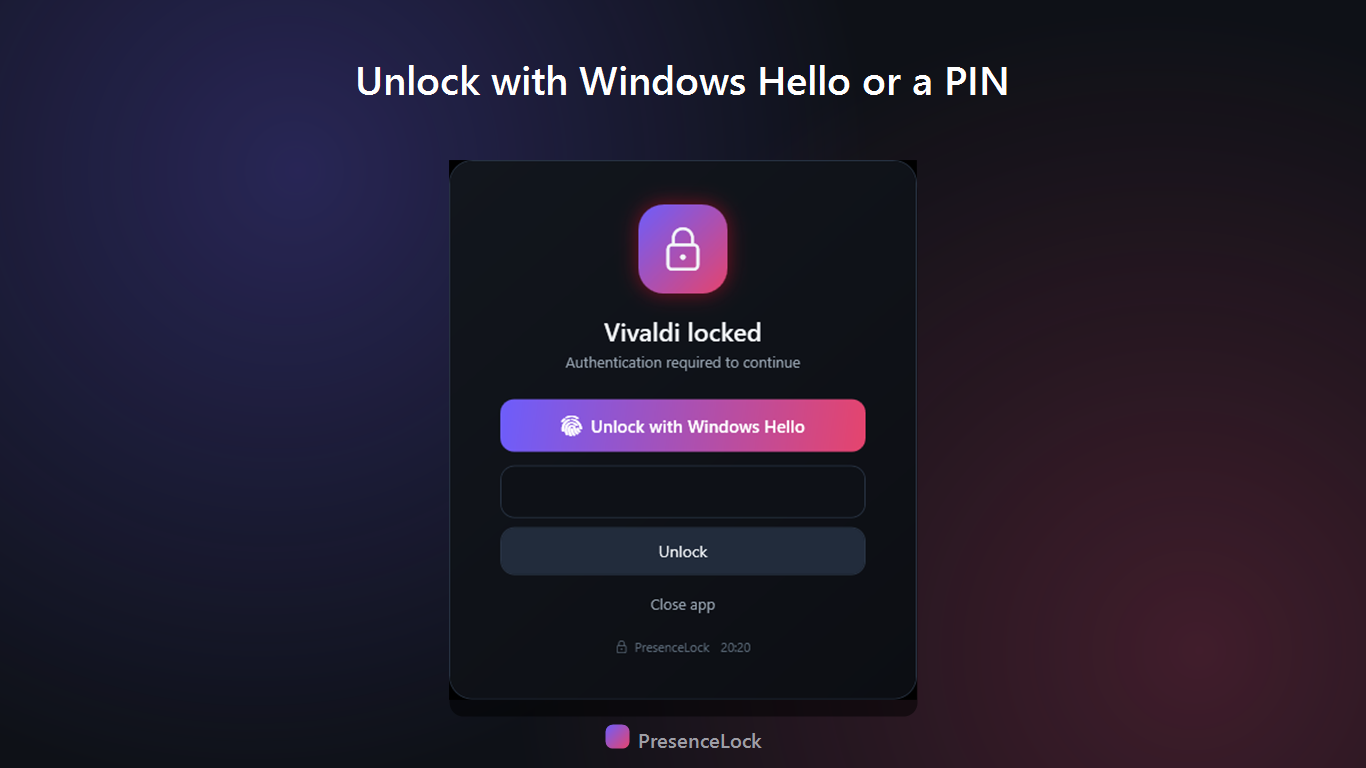
Unlocks when you're there. Locks when you're not.
You shouldn't have to remember to lock your screen. PresenceLock notices you're gone and closes the door for you.
A password per app
Pick the apps that matter, your banking, your journal, your work, and each one opens only behind the lock you choose.
Unlock your way
Windows Hello, a backup PIN, a trusted Wi-Fi network, or your phone in the room. Choose the methods that fit how you live.
Auto-lock when you leave
Step away and protected apps lock themselves. Come back and, if you're recognized, they're open again, no fuss.
Thoughtful, all the way down.
A friend password
Need to hand the laptop to someone for a minute? A separate friend password lets them in without ever giving away your own.
You set the timing
Decide how quickly things lock after you leave, so it's tight when you want it and relaxed when you're just getting coffee.
Lock by schedule
Keep apps locked during set hours, so work stays behind the lock in the evening and the kids' time is the kids' time.
Activity log
See when protected apps were opened and unlocked, so you always know what happened while you were away from the desk.
Pause on demand
Presenting, or on a long focused session? Pause the locking for a while, then let it pick right back up. Pausing asks for your code, so only you can do it.
Can't just be closed
Pausing, quitting and changing settings all ask for your code. If the app is ended from Task Manager it starts again within a minute and re-locks your apps.
Stays on your PC
No cloud, no account, no tracking. Your rules and your activity never leave your computer, and the app speaks 6 languages.
Questions people ask
A quick tour of how PresenceLock works, what it protects, and what it does not.
What is PresenceLock?
PresenceLock is a small Windows app that puts a password on the apps you choose, the way phones let you lock individual apps. When a protected app opens, it asks you to unlock first with Windows Hello, a PIN, a trusted Wi-Fi network, or your phone nearby, and it can also lock your apps automatically when you step away.
How is this different from my Windows password?
Your Windows password protects your whole account at sign-in. PresenceLock works per app, while you are already signed in, so if a partner, roommate, or colleague grabs your unlocked PC, your chat, mail, or banking app still will not open without you.
What are the ways to unlock?
Whichever you switch on: Windows Hello (face or fingerprint), a PIN, a trusted Wi-Fi network, or your phone nearby over Bluetooth. Any one of the enabled methods unlocks, and you can change them anytime in Settings.
Does it work on Windows 11 Home?
Yes, on every edition of Windows 10 and 11, Home included. That is worth saying because Windows' own AppLocker does not: Microsoft removed the edition checks, so the policy screens appear on Home, but Home does not include the components that enforce a policy, and nothing is actually blocked. PresenceLock is not a policy tool and does not depend on any of that.
Can I lock WhatsApp on Windows?
Yes, and the same goes for Telegram, Discord, your mail client, your browser, or anything else you add. PresenceLock does not need an app's cooperation: the lock sits outside the app, so it works even on apps that offer nothing of their own. WhatsApp is the one people ask about most, because its own screen lock has not reached everyone on the desktop.
Is this real security?
It is a strong privacy and convenience lock, not full-disk encryption. It stops someone who grabs your unlocked PC from opening your apps, and everything that would weaken it asks for your code first: pausing, quitting and changing settings. Ending the app from Task Manager only buys a moment, because it restarts within about a minute and re-locks. Even so, a determined, technical person could still work around it, so for truly sensitive data also use encryption such as BitLocker and a locked Windows account.
Where are my settings and codes stored? Do they leave my PC?
Everything stays on your computer. Your protected apps, schedules, and activity log live on your PC, PINs are stored only as salted, one-way hashes encrypted with Windows DPAPI, and there are no accounts, no servers, and no tracking.
Read all the questions in the full FAQ →
How to password protect apps on Windows 11, and why the built-in options do not →
Part of the Hearth family
PresenceLock shares the same promise as the rest of Hearth Software: private by design, no subscriptions, and built by a person, not a platform. Your privacy stays yours.